Save your purchase
Download the product ZIP from your Etsy order or Gumroad purchase library. Save it in your phone’s Downloads or Files app.
 HOUSEHOLD RESET CO.Home admin, but calmer.
Open it. Pick one useful thing. Make a little room in your day.
Follow along with real screenshots from a Samsung phone. Other phones and editions may look a little different.
Let’s get started →Already stuck? Find a quick fix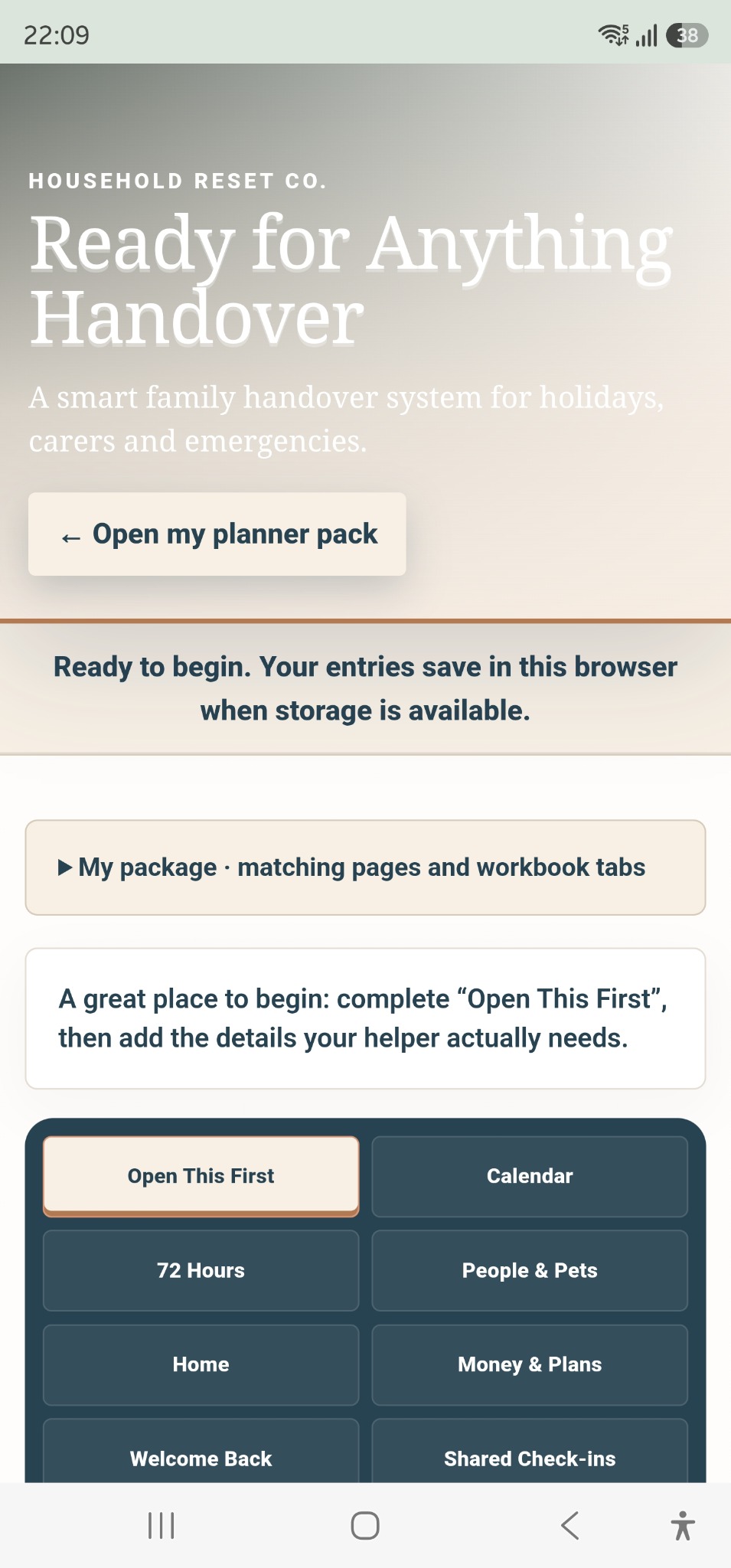
Download the product ZIP from your Etsy order or Gumroad purchase library. Save it in your phone’s Downloads or Files app.
Open the ZIP and choose Extract or Uncompress. Keep the extracted files together, and keep the original ZIP as a clean spare.
Find Ready_for_Anything_Handover_Mobile_Companion.html in the extracted folder. Open with a compatible browser if your phone offers that choice.
Try one harmless sample entry, close the file, then reopen it the same way. Check the entry is still there before adding your own information. Local-file support and saving vary between phones and browsers.
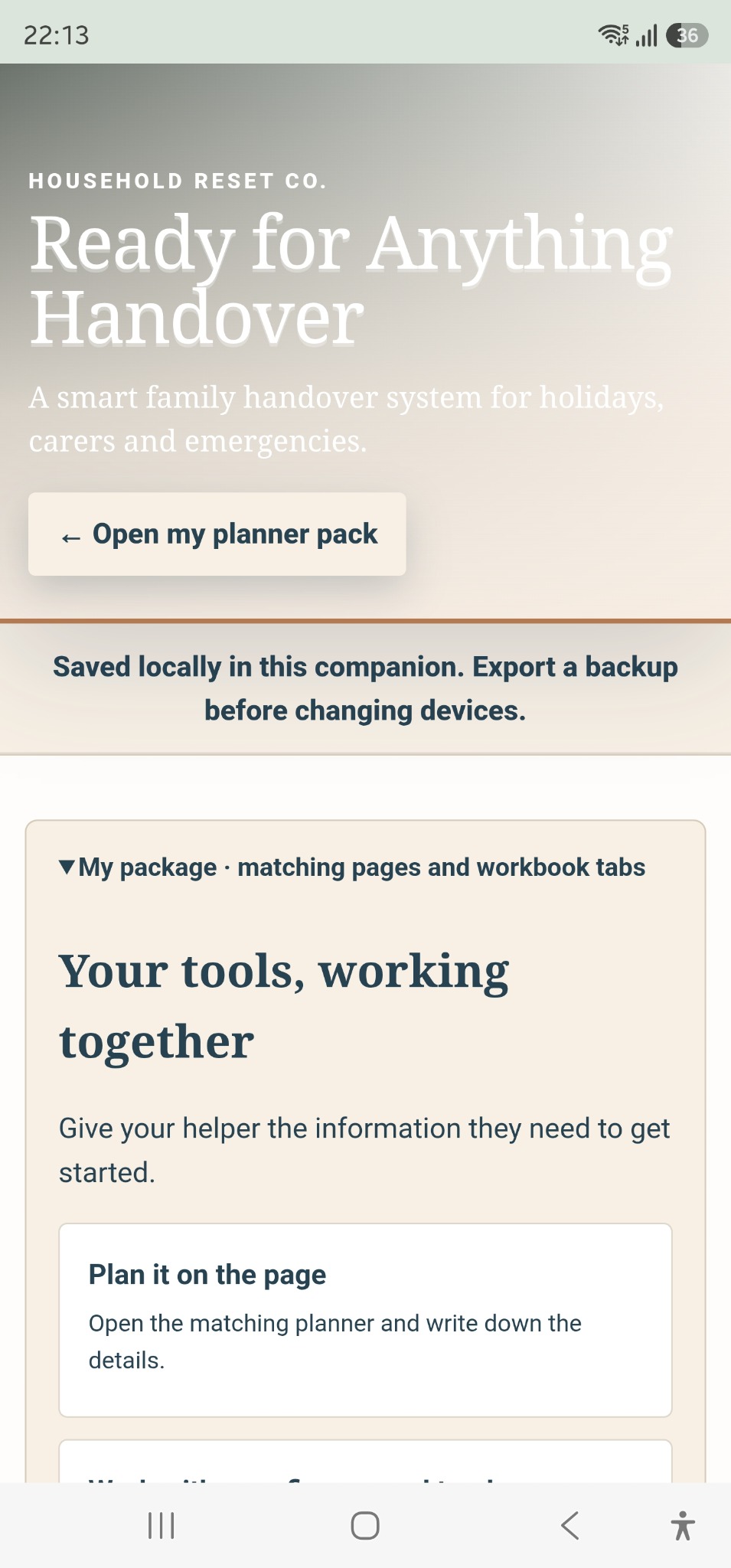
Choose just one section. Add one useful detail. You can come back to the rest.
The planner, workbook and companion are separate tools. Changes do not automatically copy between them. Shared Check-ins and Live Sheet require the separate optional setup described in your pack.
Your calendar app delivers the notification. Downloading the file alone does not schedule an alert. If your app cannot import it, create the same event manually.
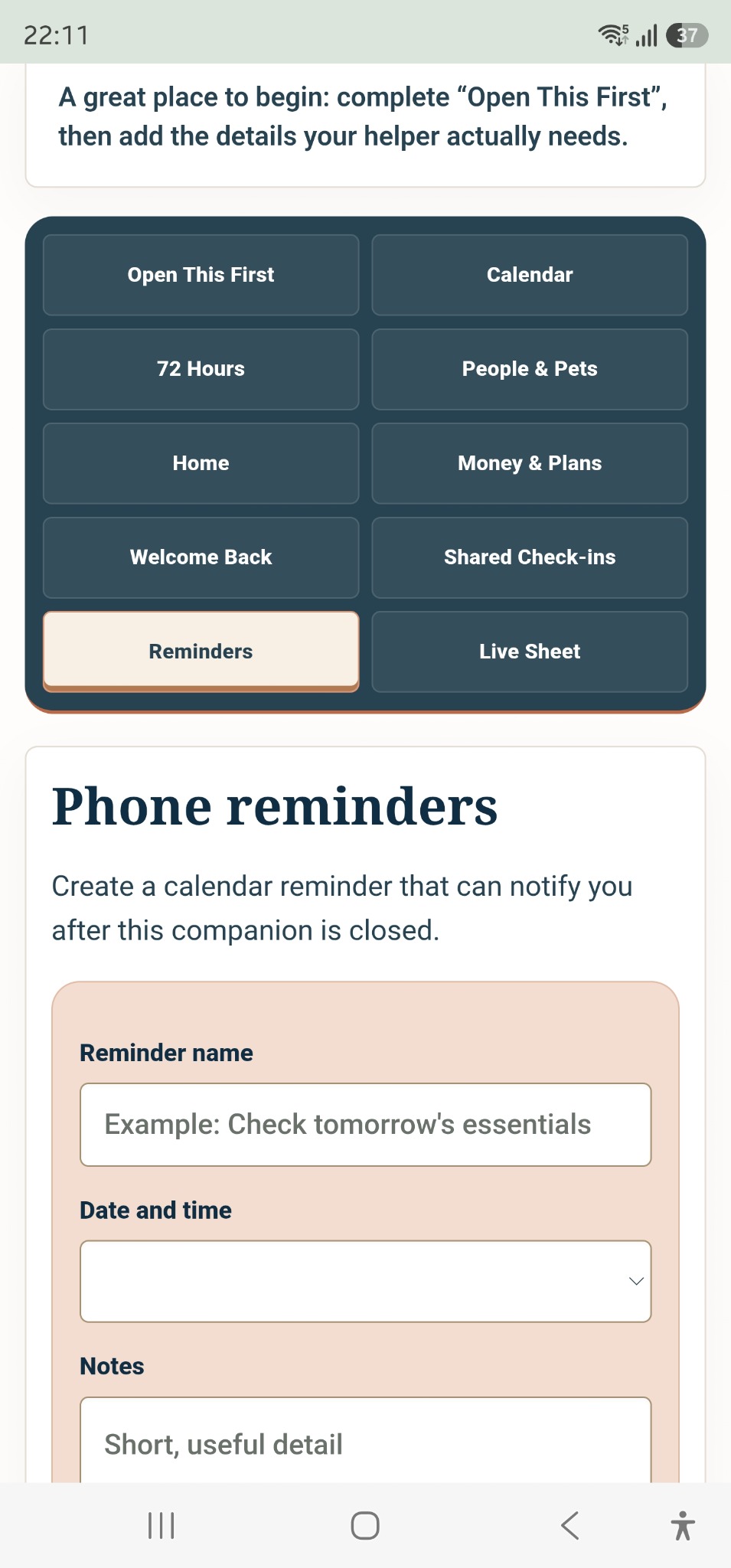
Reopen the same companion file in the same browser. Another browser, device or file location may have a different set of saved entries.
Use the companion’s backup/export control where supplied. Keep the downloaded backup somewhere private that you can find again.
Export first. Use the matching restore/import control on the new copy and check your entries before clearing the old device.
Clearing browser storage or using private browsing can remove saved information. A calendar .ics file backs up that event only — it is not a backup of the companion.
A file preview may not run the interactive controls. Extract the ZIP first and look for an Open with browser option. If your phone does not offer a working route, try a computer browser and contact us through your purchase platform with your phone and browser details.
These screenshots show Samsung, not iPhone. Files may preview an HTML file without running its interactive features. Do not assume Safari can open every local file or save its entries. Test with a sample first; use a computer browser or contact us if the interactive version will not open.
Only if your browser offers that option for the file or page you have opened. Local HTML files often do not support home-screen installation. Keeping the extracted folder easy to find is a useful alternative. No app-store installation is required.
This can be a problem with the download link rather than the companion. Return to your original Etsy or Gumroad purchase and download from there. Customers do not need ChatGPT. If your purchase download fails too, contact us through that marketplace.
Check that you imported and saved the event in your calendar. Confirm its date, time zone and alert setting, and check that your calendar app is allowed to send notifications. You can also create a fresh event manually.
Check you opened the same file in the same browser and are not in private browsing. If storage was cleared, use your saved backup with the supplied restore control. We cannot retrieve information that was only saved on your device.